
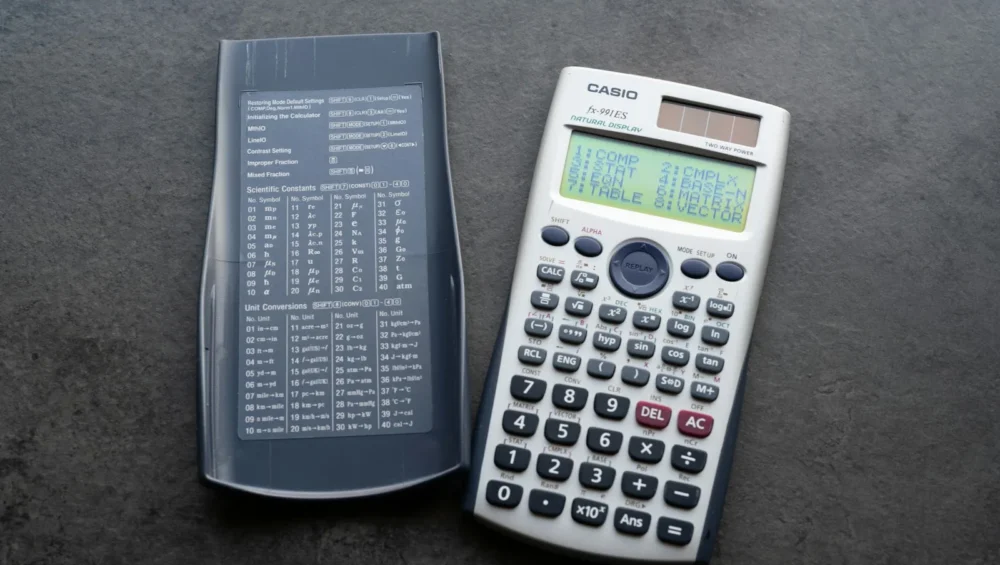
To use a scientific calculator, first check the angle mode on the display, then enter each calculation in the order it is written, using the bracket keys to group parts that must be worked out first. Use the power, root and fraction keys for the matching operations, and press equals to see the result. This guide from Decent Stationery explains each step.
Key Takeaways
- Check the angle mode (Deg, Rad or Gra) before any trigonometry. Degree is the usual default.
- Use brackets for longer calculations so each part is worked out in the right order.
- Use the power key for exponents and EXP only for standard form. 6 to the power 4 is 1,296, but 6 EXP 4 is 60,000.
- The Ans key recalls the last answer, and the S⇔D key switches between fractions and decimals.
- Not all models have the same keys, so read your manual.
What Makes a Scientific Calculator Different?
Short answer: a scientific calculator has extra keys and a second layer of functions printed above the keys, which you reach with the SHIFT key.
The Open University teaches the Casio fx-83ES in its free OpenLearn course. The SHIFT key activates the yellow function printed above a key, and an inverse-S symbol appears at the top left of the display until another key is pressed. The ALPHA key activates the red functions, which give access to the calculator’s memories. The red DEL key is the delete key, the red AC key is the all clear key, and the Ans key is the last answer key.
How to Set Up Your Scientific Calculator Before You Start
Short answer: clear old settings, choose the display format you prefer, and confirm the angle unit.
Step 1: Clear old settings
If you borrowed the calculator or changed something earlier, reset it. For the Casio fx-83ES, The Open University says to turn the calculator on and press SHIFT, 9 (CLR), 1 (Setup), equals, and AC. This clears earlier setup settings.
Step 2: Choose the display format
Casio explains that MathIO shows input and results in a textbook style, while LineIO shows results in a single line. The Open University calls Math mode the recommended way to use the calculator. Casio also notes that Norm 1, the default, shows 1 divided by 200 as 5×10 to the power of minus 3, while Norm 2 shows 0.005.
Step 3: Confirm the angle unit
There are three angle units, namely degrees, radians and grads. Casio states that degree is the default on a standard scientific calculator, and that the display indicator tells you which one is active. Its manual for the fx-82ZA PLUS II adds that 90 degrees equals pi over 2 radians, which equals 100 grads. You change the unit through the setup menu of your model.

How to Enter Calculations and Use Brackets
Short answer: key in the numbers and signs in the same order as the written expression, and put brackets around any part that must be done first.
The order of operations tells you which part of an expression comes first. Mathwords gives the order as brackets, then orders (powers), then division and multiplication from left to right, then addition and subtraction from left to right. In 6 + 2 × (5 − 3)², the brackets give 2, the square gives 4, the multiplication gives 8, and the final addition gives 14.
To test your calculator, key in 2 + 3 × 4. If the display shows 14, the calculator follows the order of operations. If it shows 20, it has worked from left to right, and you will need to use brackets or enter the parts in separate steps.
When should I use the bracket keys?
Use them whenever a calculation has a part that must be finished first. Revision Maths notes that large calculations usually need brackets, and gives the example (15 + 3.5²) ÷ (7.6 − 1.6), which comes to about 4.54. Without the brackets around the top and the bottom, the calculator would divide only the last term.
| Expression | Correct answer | Common wrong answer | Reason |
|---|---|---|---|
| 2 × (3 + 4) | 14 | 10 | Brackets skipped |
| 12 ÷ 4 × 3 | 9 | 1 | Multiplication done before division |
How to Use Powers, Roots and Standard Form
Short answer: use x² and x³ for squares and cubes, the power key for any other exponent, the root keys for roots, and EXP for standard form.
Revision Maths gives clear examples. To find 12 squared, press 12 and then the x² key to get 144. For 8 cubed, press 8 and the x³ key to get 512. For 4 to the power 5, press 4, the y to the power x key, and 5 to get 1,024. The square root of 40 is about 6.32, the cube root of 125 is 5, and the fifth root of 32 is 2. Some calculators use a 2nd F key to reach the root functions.
What is the difference between EXP and the power key?
The two keys do different jobs. Casio is direct about it: EXP, also marked ×10 to the power x, is for scientific notation, not for powers. Its example is that 6 raised to the fourth power gives 1,296, while 6 EXP 4 gives 60,000. Revision Maths gives 3.4 × 10 to the power 4, which equals 34,000, as its standard form example and notes that some calculators use a button marked EXP for it.

How to Work With Fractions and Decimals
Short answer: enter a fraction with the fraction key, and use the S⇔D key to change an answer between fraction and decimal form.
Casio explains that pressing S⇔D or F⇔D switches between the two forms. On some models you can show a mixed number with SHIFT and S⇔D, or by changing the ab/c setting in the setup menu. Revision Maths shows how a fraction key can give a mixed number, with 8 over 5 appearing as 1 and 3 over 5. Casio adds that using the division key, or LineIO mode, gives decimal answers.
How to Use Trigonometry, Logarithms and the Angle Mode
Short answer: set the correct angle unit first, then press the function key followed by the angle, and close the bracket if the display opens one.
The sine of 30 is a different number in degree mode than in radian mode, so a wrong setting gives a wrong answer even when every key is pressed correctly. Casio also says that on some models, such as the fx-82ES, you can attach the unit to the number as you type, so that 90° can be entered even when the calculator is set to radians.
For logarithms to a base that has no key, Casio gives the rule log base b of a equals log a divided by log b.
How to Use the Memory and the Ans Key
Short answer: press Ans to reuse the last result, and use the store keys to keep a number you need later.
The Ans key brings back the answer to the previous calculation, so you can carry it into the next step without retyping. To store a value, Casio says to press SHIFT, STO and M after a simple calculation. In a longer sequence, press Ans first and then SHIFT, STO, M. Otherwise, as Casio warns, the calculator repeats the last operation.
Common Mistakes to Avoid
Four errors cause most wrong answers. The first is the wrong angle mode, so check the indicator before every trigonometry exercise. The second is using EXP when you mean a power. The third is missing brackets around the top and bottom of a fraction. The fourth is assuming every calculator matches. Revision Maths warns that not all scientific calculators contain all the buttons.
A Practical Note for Students in Pakistan
Before you buy, ask your teacher or examination centre which calculator models are allowed. Keep the instruction booklet, since key sequences vary by model. Our geometry box buying guide covers what to look for, and products such as the Dux Mathematical Geometry Box and the D Scale Geometry (180 Degree Protractor) suit the same lessons. Our article on how to sharpen a pencil without breaking the lead is useful for the pencil work that goes with your maths lessons. Check our calculators price in Pakistan page for current listings, and tidy up your study area with a desk organizer.
Frequently Asked Questions
A basic calculator handles the four operations. A scientific calculator adds brackets, powers, roots, trigonometry, logarithms, fractions, standard form and memory. Not every model has every button, so check your own.
Use degrees for school geometry and basic trigonometry, and radians only when a question gives angles in radians or in terms of pi. Casio states that degree is the default angle mode on a standard scientific calculator.
It enters a power of ten for standard form. Casio gives the example that 6 EXP 4 gives 60,000, while 6 to the power 4 gives 1,296.
Press the S⇔D key, which some models label F⇔D. Casio notes that it toggles between fraction and decimal form.
The usual cause is the wrong angle mode. The same key presses give a different value in degrees and in radians, so check the display indicator and enter the calculation again.
On a Casio fx-83ES, The Open University says to press SHIFT, 9 (CLR), 1 (Setup), equals, and AC. Other models use different sequences, so consult the manual.
Conclusion
A scientific calculator rewards a few good habits. Check the angle mode, enter calculations with brackets, use the power key for exponents and EXP for standard form, and rely on Ans to avoid retyping. When you need a calculator for school, visit Decent Stationery and our calculators collection, and see our essential office supplies checklist for other desk items.
Sources and Further Reading
- The Open University, OpenLearn: Using a scientific calculator (Getting to know your calculator)
- Casio Support: Scientific calculator features FAQ
- Casio Support: fx-82ZA PLUS II manual, configuring the calculator
- Revision Maths: How to use a scientific calculator
- Mathwords: Order of operations (BODMAS)
About the Author
Written by the Decent Stationery team in Lahore. We sell school, office and art stationery online across Pakistan, including calculators. The instructions in this guide come from the manufacturer and educational pages linked above.